Wednesday, December 12, 2018

After change existing switch to dell switch

Hi,

I hope you all good.

After change my existing HP switch to dell N series switch automatically my DVR and printer stopped working or even not able to ping.

Which one step I follow to resolve this scenario:-

1. First check Lan Cable

2. Reboot the DVR and Printer (From both way soft and hard )

3. Try to change the port in back end

4. Reboot the Switch

After checked each and everything still issue is same.

Solution:- First find the particular port number in switch where we connected DVR and Printer then change that port speed Auto to 100 Mbps.

(Change the switch speed setting for that particular port Auto to 100 Mbps)


Resolved.

Monday, December 3, 2018

Windows 7 - Windows Loads With Temporary Profile

The first step, if the profile is not completely corrupt, is to rename the temporary profile registry key and revert the correct profile back.
  1. Log in with your temporary profile if your account has administrative rights or login with the local administrator account.
  2. Go to run and type regedit then folow this mention below path HKLM\SOFTWARE\Microsoft\Windows NT\CurrentVersion\ProfileList


3.  Look for the profile with the ".bak".  This is the CORRECT old profile.


4. Rename the profile that does not have ".bak" by adding "_new" to the end, just be sure to rename the profile with the matching SID.  Next remove the ".bak" from the correct profile.


5. Log off and then log back in with the profile that was problematic.  It is possible that Windows will undo everything you have just done and rename the profile again.  If this happens you can try running a Check Disk on the partition that contains the user profiles.  You will need to re-do all the steps above, run Check Disk, and restart.  If this doesn't correct the issue, you will need to remove the offending profile and recreate it.
 
   
To remove the domain profile and recreate it:
  1. Follow the above activity to clean up the registry, then login as a local administrator.
  2. Navigate to the profile directory C:\Users\Username and backup your c: drive data (Desktop, Documents, Download etc.)
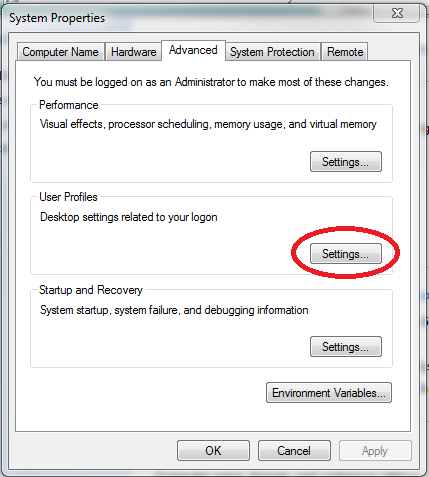
  3. Go to My computer properties and then click advance setting.

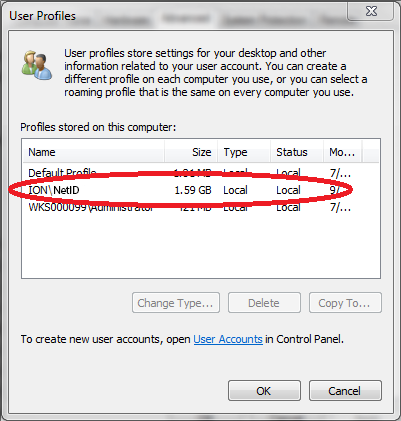
  4. Locate the corrupt profile  DomainName\UserName (ION\NetId) and Delete this profile.


  5. Navigate to C:\Users and make sure the folder titled by the corrupt profile NetID is gone.  If not, delete this folder.
  6. Log out or restart and log back in using the previously corrupt NetID profile.  Windows will build a new profile for this NetID from the Default profile.
  7. Restore any data to the profile that was previously backed up.
Resolved !


How to clean the system

Hi Guys,

I hope you all doing great !


Today we are going to show you, how to clean up temporary file from your system.

Step 1. Go to run and type %temp% then select all and delete.

Step 2. Go to run and type temp then select all and delete.

Step 3. Go to run and type prefetch then select all and delete.

Step 4. Go to run and type recent then select all and delete.

Step 5. Open my computer and go to properties of C: Drive after right click on it.

            See the image below


Then click on disk clean up and it will automatically calculate the unused file and folder.
after it just click OK and delete files.


Step 6. Remove unused software from Program and Feature (For open program and feature Go to run and type appwiz.cpl).

Step 7. Remove browser history from browser history tab and cache memory.