The first step, if the profile is not completely corrupt, is to rename
the temporary profile registry key and revert the correct profile back.

3. Look for the profile with the ".bak". This is the CORRECT old profile.

4. Rename the profile that does not have ".bak" by adding "_new" to the end, just be sure to rename the profile with the matching SID. Next remove the ".bak" from the correct profile.

5. Log off and then log back in with the profile that was problematic. It is possible that Windows will undo everything you have just done and rename the profile again. If this happens you can try running a Check Disk on the partition that contains the user profiles. You will need to re-do all the steps above, run Check Disk, and restart. If this doesn't correct the issue, you will need to remove the offending profile and recreate it.
To remove the domain profile and recreate it:
- Log in with your temporary profile if your account has administrative rights or login with the local administrator account.
- Go to run and type regedit then folow this mention below path HKLM\SOFTWARE\Microsoft\Windows NT\CurrentVersion\ProfileList
3. Look for the profile with the ".bak". This is the CORRECT old profile.
4. Rename the profile that does not have ".bak" by adding "_new" to the end, just be sure to rename the profile with the matching SID. Next remove the ".bak" from the correct profile.
5. Log off and then log back in with the profile that was problematic. It is possible that Windows will undo everything you have just done and rename the profile again. If this happens you can try running a Check Disk on the partition that contains the user profiles. You will need to re-do all the steps above, run Check Disk, and restart. If this doesn't correct the issue, you will need to remove the offending profile and recreate it.
To remove the domain profile and recreate it:
- Follow the above activity to clean up the registry, then login as a local administrator.
- Navigate to the profile directory C:\Users\Username and backup your c: drive data (Desktop, Documents, Download etc.)
- Go to My computer properties and then click advance setting.
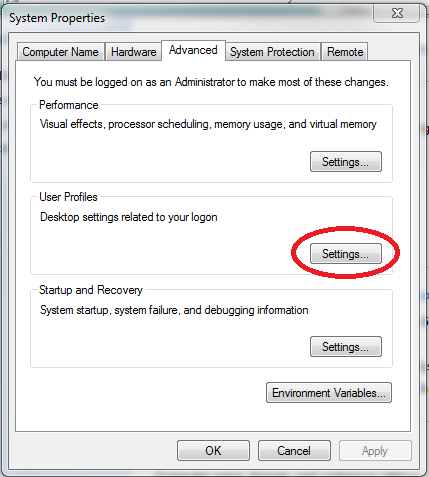
- Locate the corrupt profile DomainName\UserName (ION\NetId) and Delete this profile.
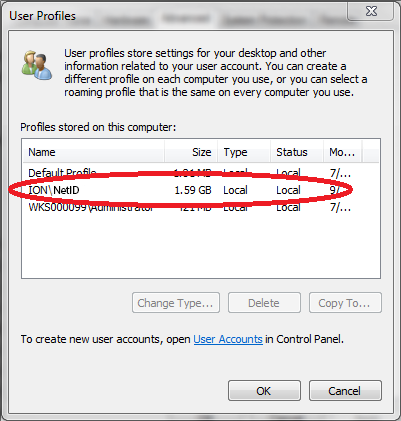
- Navigate to C:\Users and make sure the folder titled by the corrupt profile NetID is gone. If not, delete this folder.
- Log out or restart and log back in using the previously corrupt NetID profile. Windows will build a new profile for this NetID from the Default profile.
- Restore any data to the profile that was previously backed up.

No comments:
Post a Comment