Copy Folders and Subfolders Using Xcopy Command
1. copy folders and subfolders and contents
1. Click Start and type cmd in the search box. Right-click Command Prompt from the result list and select Run as administrator. Or you can press Win + R to call up Run window, and type "cmd" in the textbox to directly run it.
2. Now, when you're in the Command Prompt, you can type Xcopy command as below to copy folders and subfolders including contents. For example, you want to copy “test” folder and its subfolders on C drive to D drive, type Xcopy command as:
Xcopy C:\test D:\test /E /H /C /I
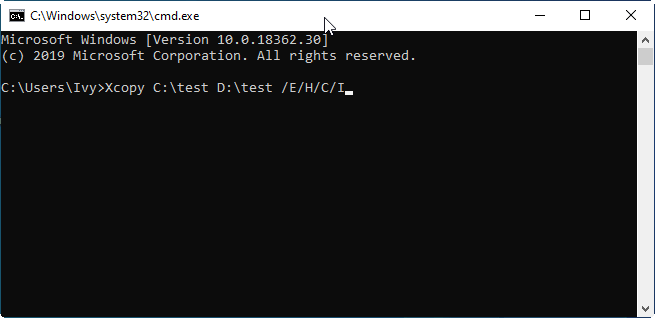
-
/E – Copy subdirectories, including any empty ones.
-
/H - Copy files with hidden and system file attributes.
-
/C - Continue copying even if an error occurs.
-
/I - If in doubt, always assume the destination is a folder. e.g. when the destination does not exist.
✎Notes:
-
Xcopy will not copy open files.
-
Xcopy doesn’t display any progress or completed operations information when executed.
-
Remember that for folders with spaces in the name or folders larger than 8 characters in length, it is a good idea to put quotation marks around the path or you may get an error.
Situation 2. copy folders and subfolders without files
You can open the Command Prompt according to the steps shown above. Then, type the Xcopy command as below to copy folders and subfolders without files:
Xcopy Source Destination /T /E
-
/T - Copy the subdirectory structure, but not the files.
-
/E - Copy subdirectories, including any empty ones.
Situation 3. copy folders and subfolders with NTFS and Share permission
Sometimes, you may need to transfer the NTFS and Share permission together with your folders.
Once the Command Prompt is open, you can then type the following Xcopy command to copy all files and folders and retain its NTFS and Share permissions.
Xcopy Source Destination /O /X /E /H /K
-
/E - Copy folders and subfolders, including empty ones.
-
/H - Copy hidden and system files also.
-
/K - Copy attributes. Typically, Xcopy resets read-only attributes.
-
/O - Copy file ownership and ACL information.
-
/X - Copy file audit settings (implies /O).
Actually, there are many parameters of Xcopy command, and you can combine different parameters for different situations. But if there is a slight error in the command, the copy operation may fail, and even lead to data loss. Therefore, you must be very careful when using Xcopy command.

No comments:
Post a Comment