Troubleshoot no “Switch User” option in Windows 10/11?
First Method:- Configure Windows Group Policy
- Press the Windows Key and R simultaneously, type in or paste “msc” (no quotes) in the Run dialog box and hit Enter.
- The Local Group Policy window should appear next. Follow this path:
Computer Configuration > Administrative Templates > System > Logon
- Double-click “Hide Entry Points for Fast User Switching” to open it.
- Select Disabled to turn it on.
- Click Apply > OK.
- Exit the Local Group Policy Editor window and check if the Switch User option is back.
2nd Method:- Edit the Windows Registry
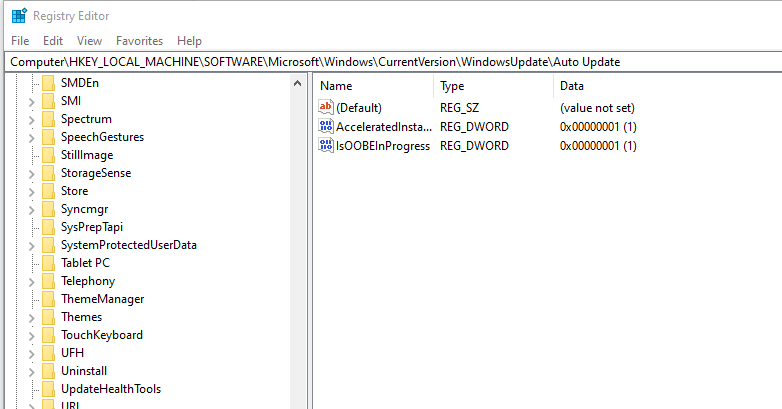
Keep in mind that applying changes to the Windows Registry can be risky. Therefore, follow the steps below carefully and only make the changes as outlined. We recommend that you first create a backup of your registry to make it easy to restore it in case something goes wrong.
Backing up your registry on Windows 10/11 is quite simple. Here’s the guide:
- Go to your Start menu, type in “regedit” (no quotes), and press Enter.
- Right-click the first option – Registry Editor – and select Run as administrator.
- Click Yes when you get the system prompt.
- Select File > Export and pick the location where you want to save the backup file.
- Assign the file a name, and make sure to select the All option under Export Range.
- Click on Save.
Once you’re done, here’s how to enable another user in Windows 10/11 through the registry:
- Launch the Registry window once again and expand the following path:
Computer\\HKEY_LOCAL_MACHINE\\SOFTWARE\\Microsoft\\Windows\\CurrentVersion\\Policies\\System
- Once you get to this location, search for a value labeled “HideFastUserSwitching”. If it doesn’t exist, you can quickly create one. To do so, right-click the System folder and select New > DWORD (32-bit) Value. Type the name “HideFastUserSwitching” (no quotes) and press Enter. This will create the value.
- Next, double-click the HideFastUserSwitching value and set the Value Data to 0 (zero) to enable it.
That should do it. Now, press the Windows logo on your keyboard and click on your user icon to check if this fix resolved the no Switch User option in your Windows 10/11 computer.

No comments:
Post a Comment