Modifying registry keys incorrectly may cause serious system problems. So before you get started, it is recommended that you back up the registry key so you can restore it in case any problems occurs.
1. Stop Print Spooler service. (refer steps in Solution 1 to stop the service)
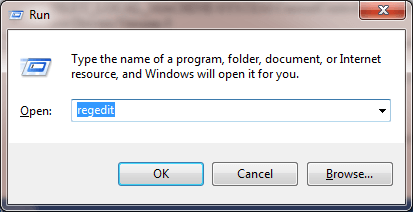
2. Press Win + R (Windows logo key and R key) at the same time. A Run dialog box will open.
3. Type regedit in the run box and click OK button.
4. Expand HKEY_LOCAL_MACHINE\SOFTWARE\Microsoft\Windows NT\CurrentVersion\Print\Providers\Client Side Rendering Print Provider. Right-click on Client Side Rendering Print Provider and select Delete.
5. Start the Print Spooler service.
6. Reboot your computer and try to add the computer again.
Hope the solutions here will help you fix the printer not connecting issue.

No comments:
Post a Comment