Follow steps below to stop Print Spooler service then start it again.
1. Press Win+R (Windows logo key and R key) at the same time. A Run dialog box will open.
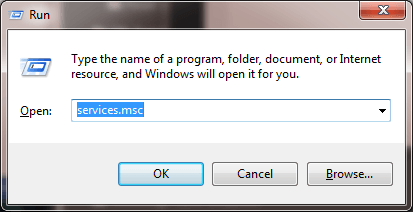
2. Type services.msc in the run box and click OK button.
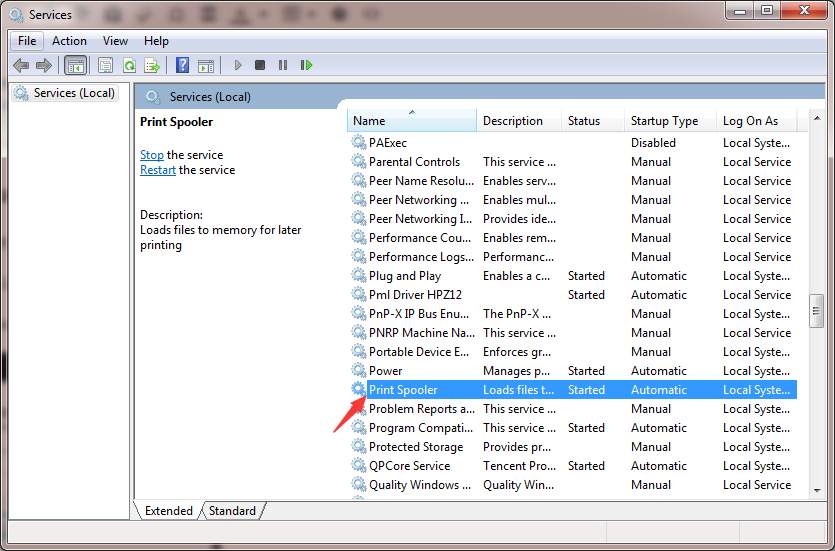
3. In the Name list, locate and double-click on service Print Spooler.
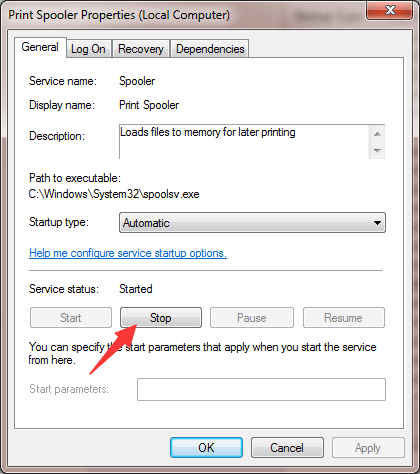
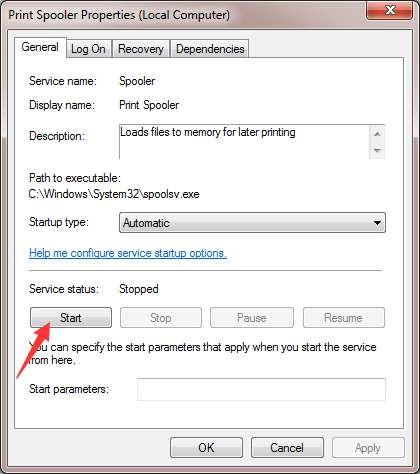
4. Click Start button to start the service again.
5. Click OK button.
After that, add the printer again and see if the problem persists.

No comments:
Post a Comment